
Finalize your 2026 personal income tax return on eTax Mobile.
Settling your 2026 personal income tax return on eTax Mobile is the fastest way for taxpayers to fulfill their personal income tax obligations for the 2025 tax year right on their phones. The entire 2026 personal income tax settlement process is done online without needing to visit the tax office.
Step 1: Download the eTax Mobile app and register an account.
| Operation | Detail |
| Download the app | AccessApp Unlock(iOS) orGoogle Play(Android), search for "eTax Mobile" and download it. |
| Register an account | Open the app → Select"Register an account"→ Enter Tax ID, Citizen Identification Number, Phone Number → Set Password |
| Authentication | ImportOTP codeSent via SMS → Registration Complete |
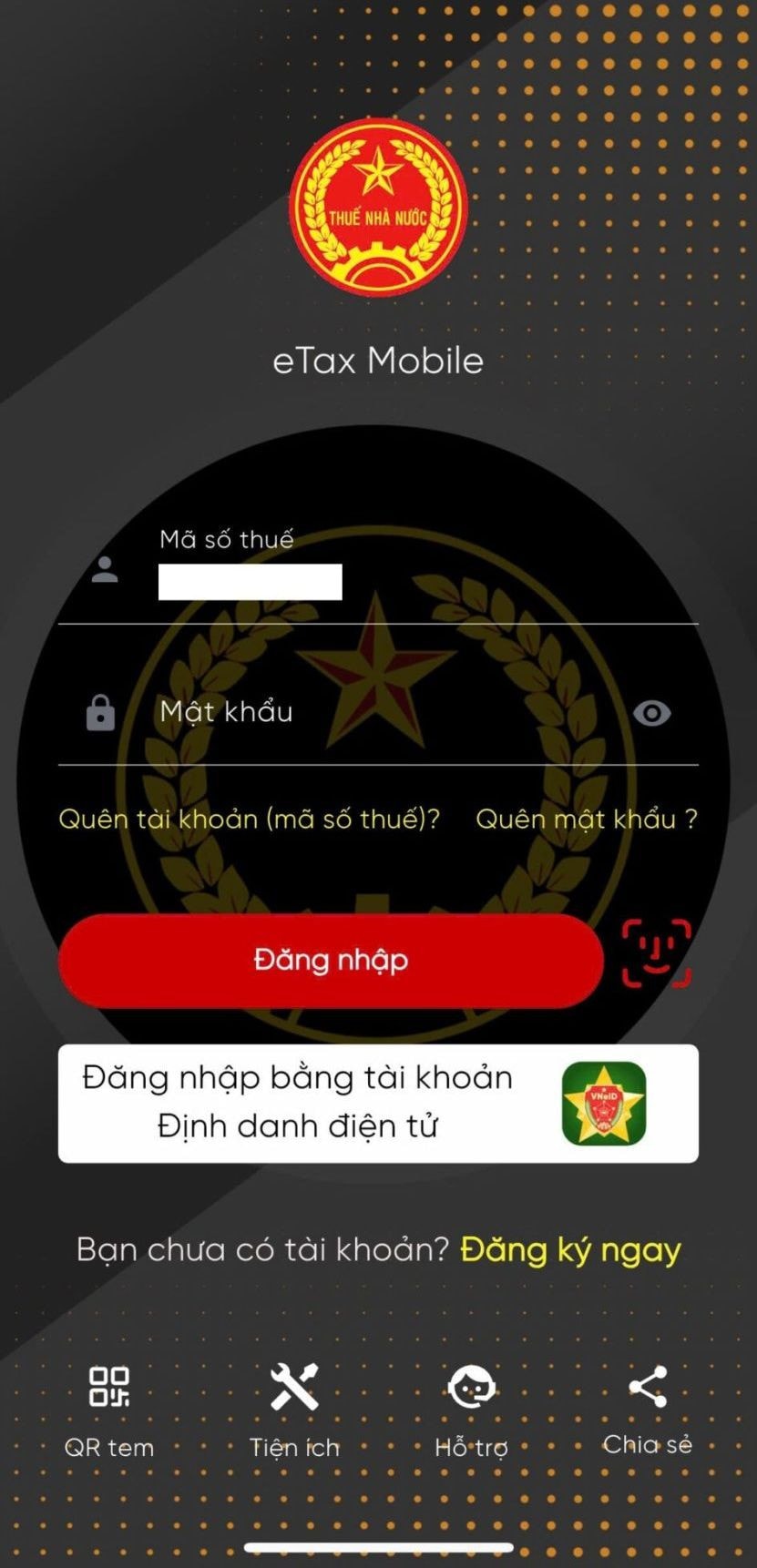
Step 2: Log in to the eTax Mobile app.
| How to log in | Instruct |
| Method 1 | Log in withTax ID + PasswordIssued upon registration |
| Method 2 | Log in withelectronic identity account(VNeID) |
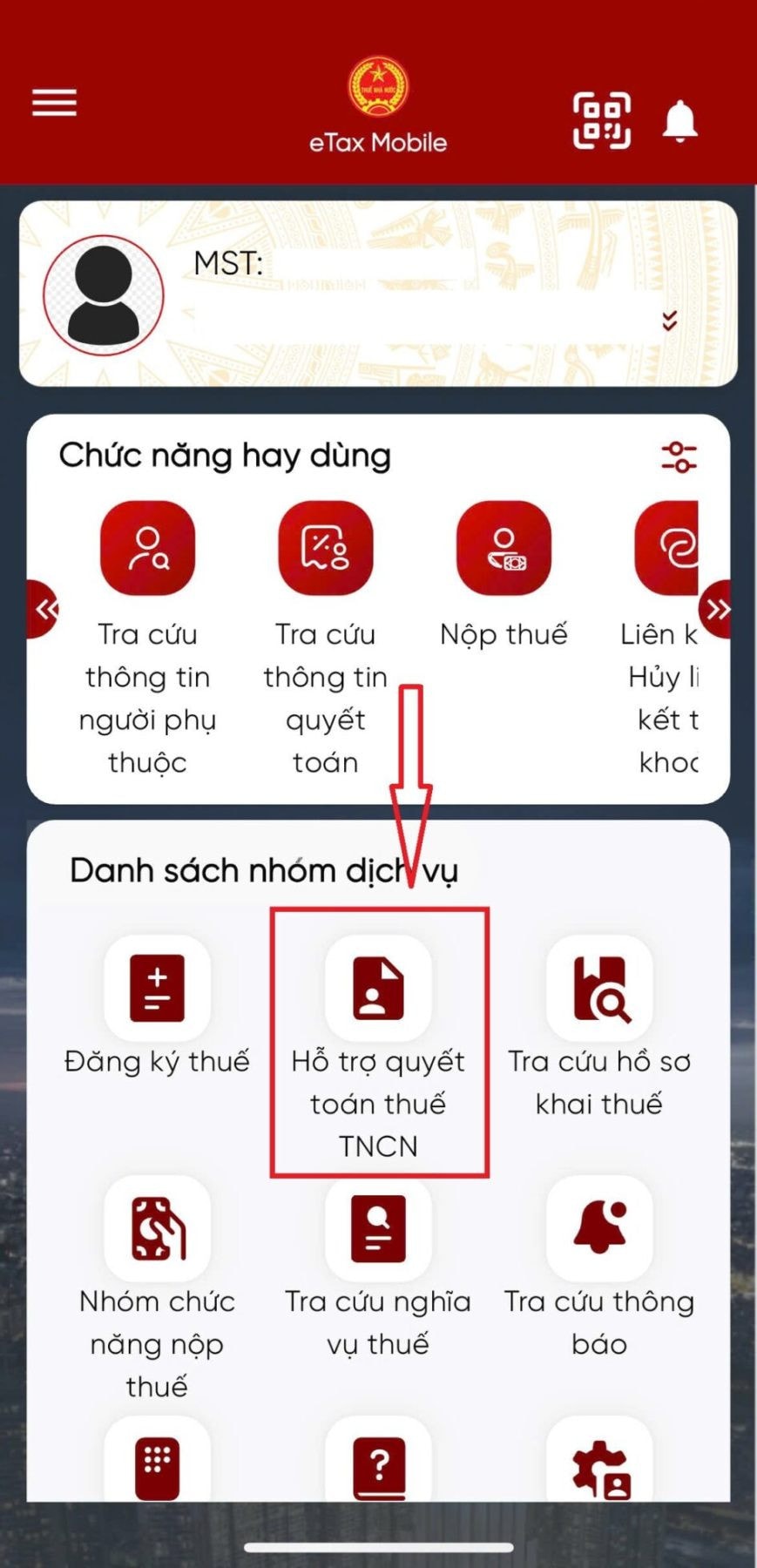
Step 3: Look up settlement information
This is the most important step in the 2026 personal income tax settlement process on eTax. Taxpayers should follow these steps:
| TT | Detailed instructions |
| 3.1 | Select menu"Assistance with personal income tax finalization"→ Select"Assistance with preparing tax return forms"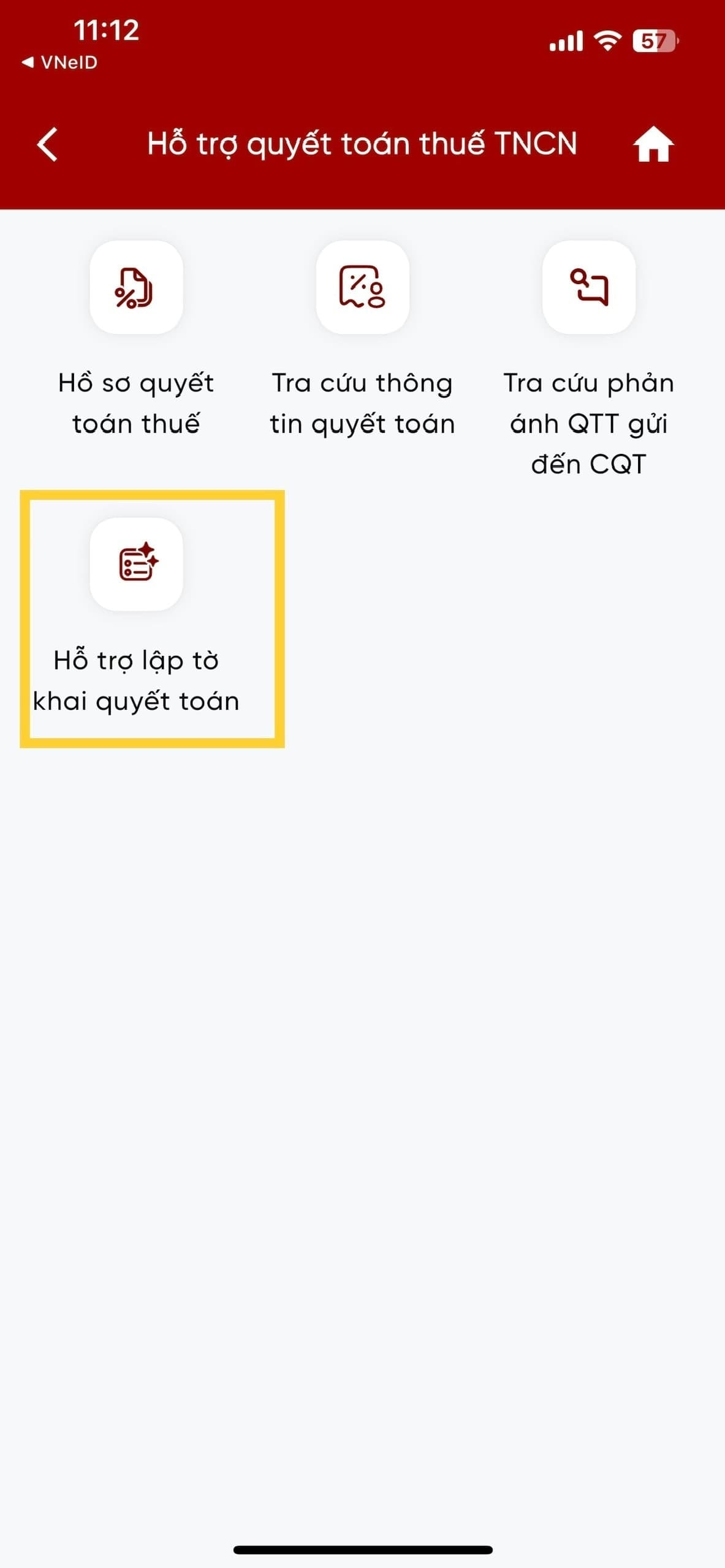 |
| 3.2 | Selectyear of settlement(2025)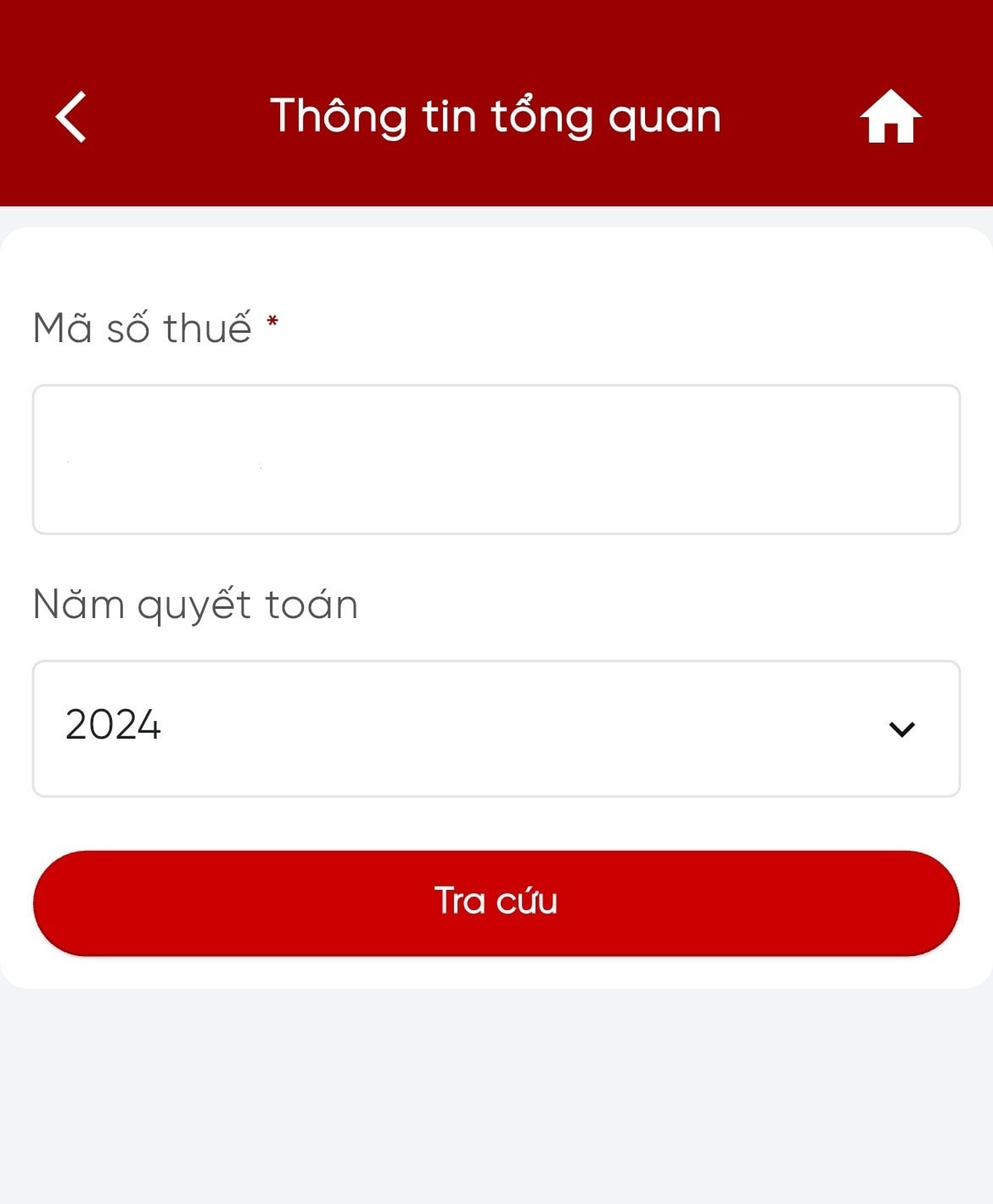 |
| 3.3 | Click "Lookup" → The system will automatically compile your income data and the amount of tax withheld.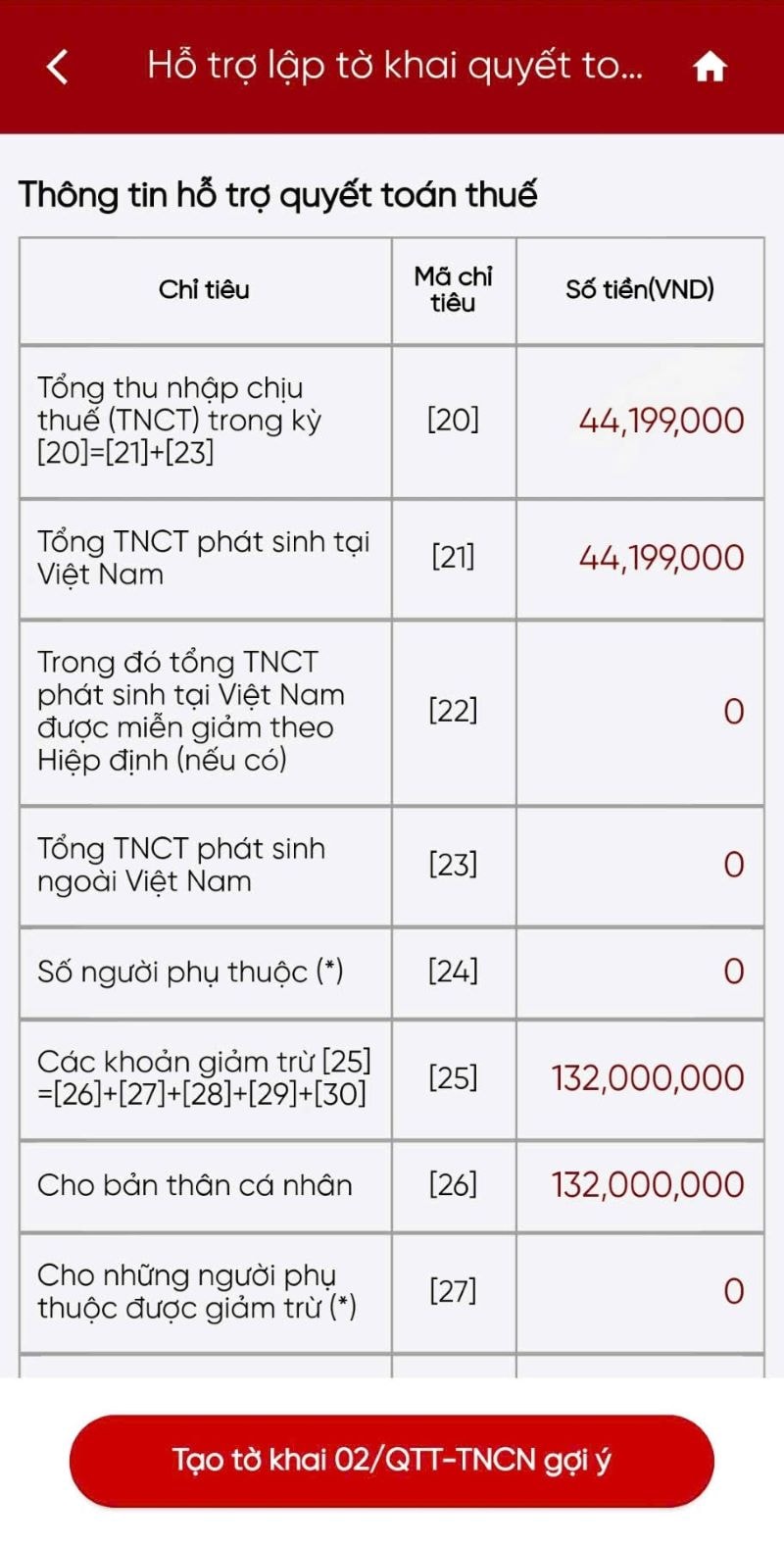 |
| 3.4 | Press"Suggested way to create tax return form 02/QTT-TNCN"→ System for automatically generating draft declarations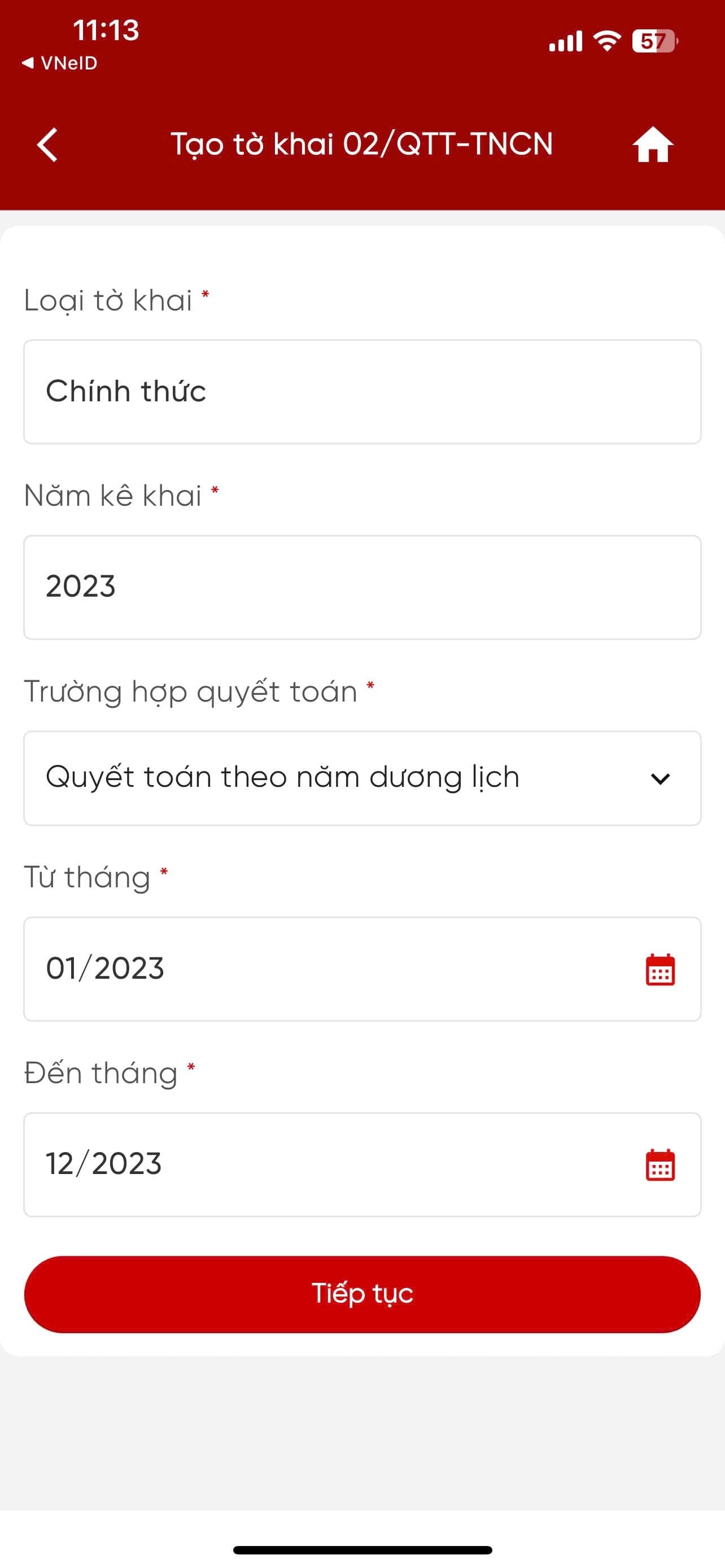 |
Note: The fields for the declaration type (official), declaration year, and settlement case (calendar year) are default and cannot be edited. The "From month" field can be edited, and "To month" automatically sets to the last month of the settlement year.
Step 4: Determine the tax authority to which you will submit your tax return.
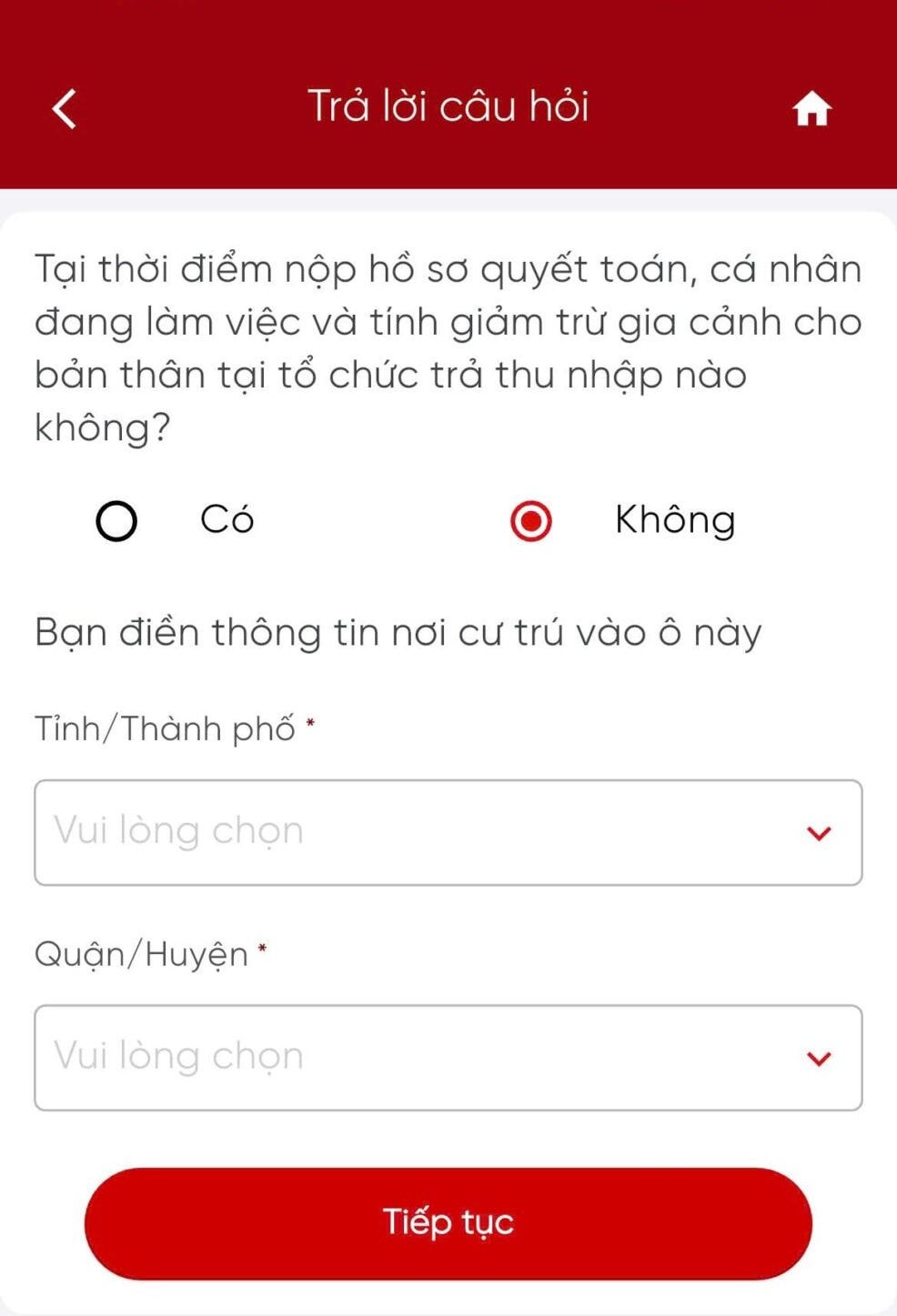
Press"Continue"The system automatically identifies the tax authority that will receive the application. Depending on the case, the tax authority is determined as follows:
| Case | Object | Tax authorities |
| Case 1 | No employment contract, a contract of less than 3 months, or a service contract with income subject to a 10% withholding tax. | Selectplace of residenceof taxpayers |
| Case 2 | Having a salary income from one place, and being subject to self-filing of tax returns during the year. | Systemautomatic selectionaccording to regulations |
| Case 3 | Other cases | Display systemquestionfor taxpayers to select and enter |
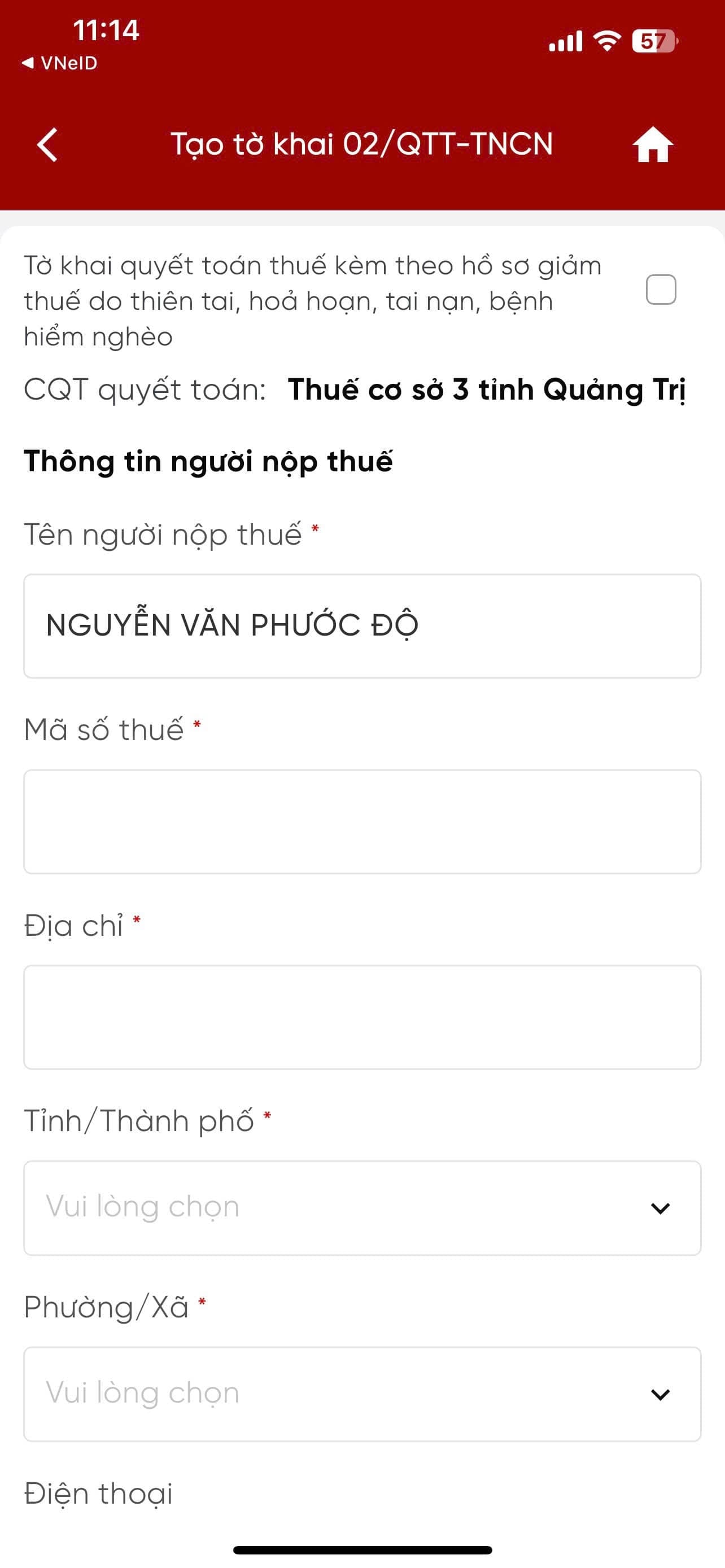
Step 5: Check the general information on the application form.
The system displays general information on the screen. The taxpayer checks and confirms it.
| Information | eTax automatically fills in the information. | Allow taxpayers to make corrections. |
| Tax authorities finalize the settlement. | Have | Some schools |
| Taxpayer's name, Tax Identification Number (TIN) | Have | Are not |
| Address, province/city | Have | Allow reselection |
| Telephone, fax, email | Have | Allow editing |
| Tax identification number (MST), name, and address of the income-paying organization. | Have | Are not |
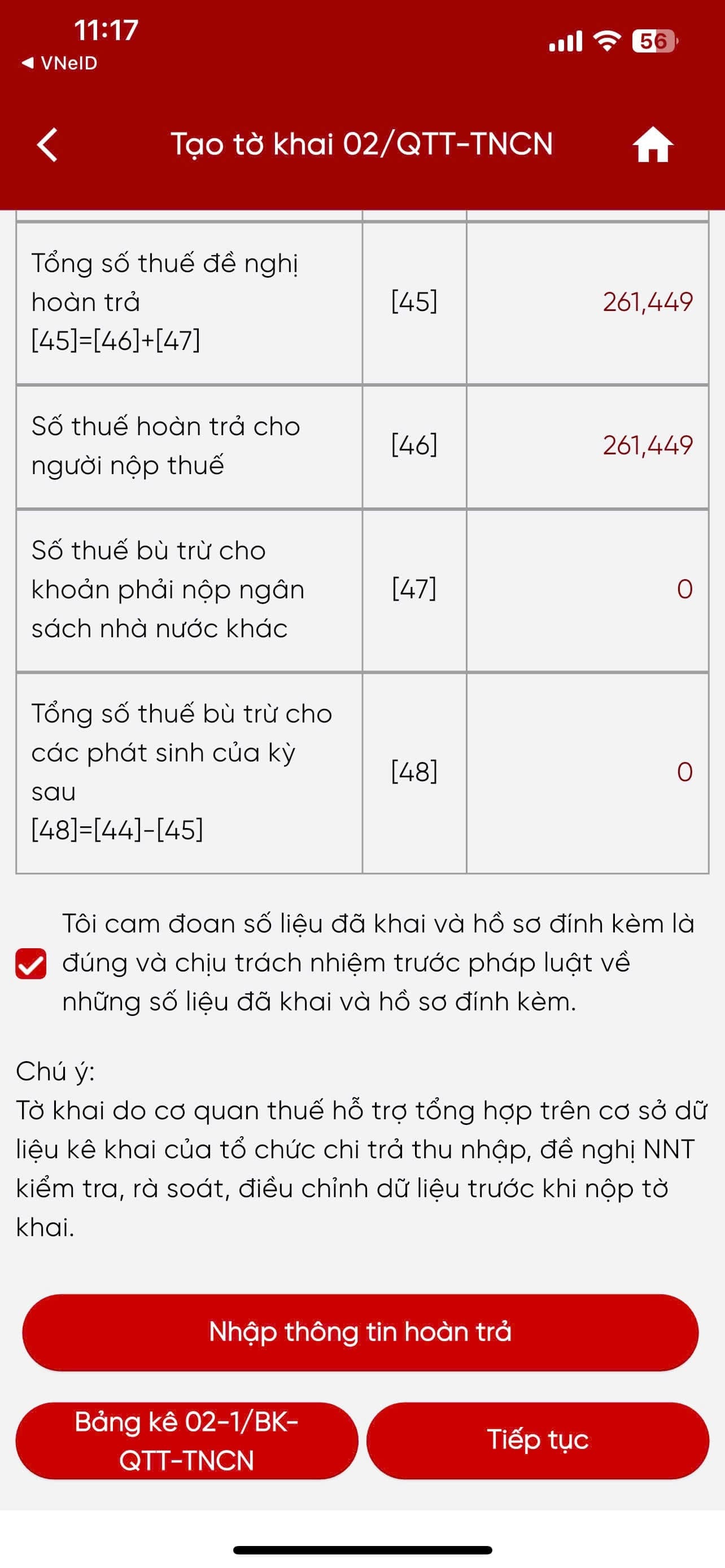
Step 6: Fill in the items on the tax return form.
Press"Continue", the system displays indicators from [20] to [48], allowing you to check and edit data. This is the most detailed declaration step in the 2026 personal income tax settlement process on eTax.
| Situation | Operation |
| There are dependents. | Press"Statement 02-1/BK-QTT-TNCN"→ Enter: Full name [10], Tax ID [11], Document type [12], Document number [13], Date of birth [14], Relationship [15], Deduction period [16], [17] |
| Indicator [46] > 0 (Tax refund available) | Choose your preferred method for receiving the refund:Transfer(Enter account holder's name, account number, and bank) orCash(only applicable when the amount≤ 5 million VND) |
| Indicator [47] > 0 (Tax offsetting) | Press"Offer of compensation"→ The system displays overdue payments → Offset with the overpaid amount |
Step 7: Enter your bank account information for receiving tax refunds.
| Form | Information to be entered |
| Transfer | Account holder name, account number, bank name |
| Cash (Amount ≤ 5 million) | Recipient information as requested by the system. |
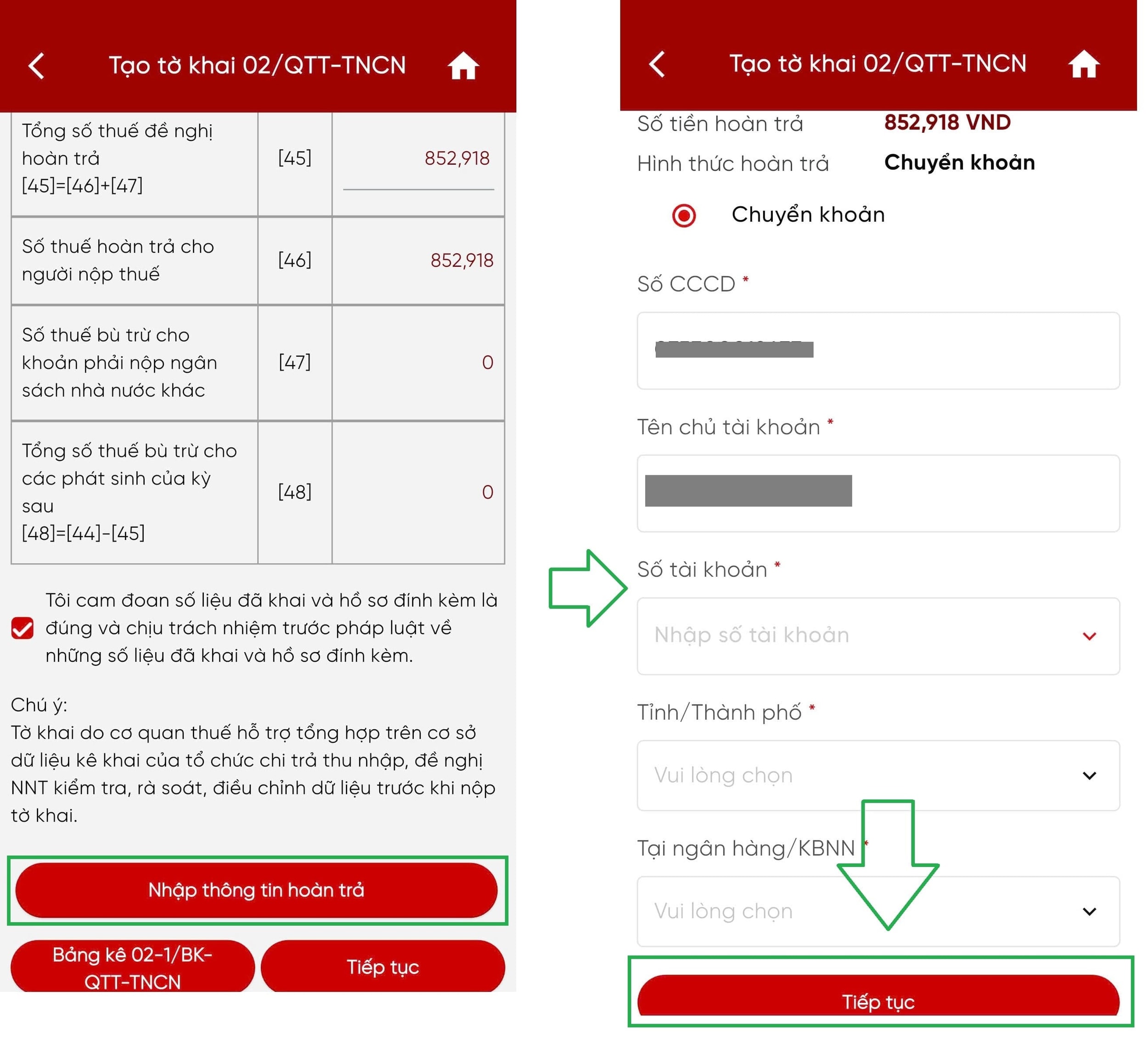
Press"Continue"The system displays the completed form 02/QTT-TNCN on the screen.
Step 8: Attach the relevant appendices and documents.
| Request | Detail |
| Operation | Select"Add a new appendix"→ Upload documents |
| Documents to be attached | Tax deduction certificates, employment contracts, citizen identification cards, and related documents. |
| File format | PDF, JPEG, or PNG— Do not exceed system capacity limits |
| Complete | After the download is complete → Press"Submit the declaration form" |
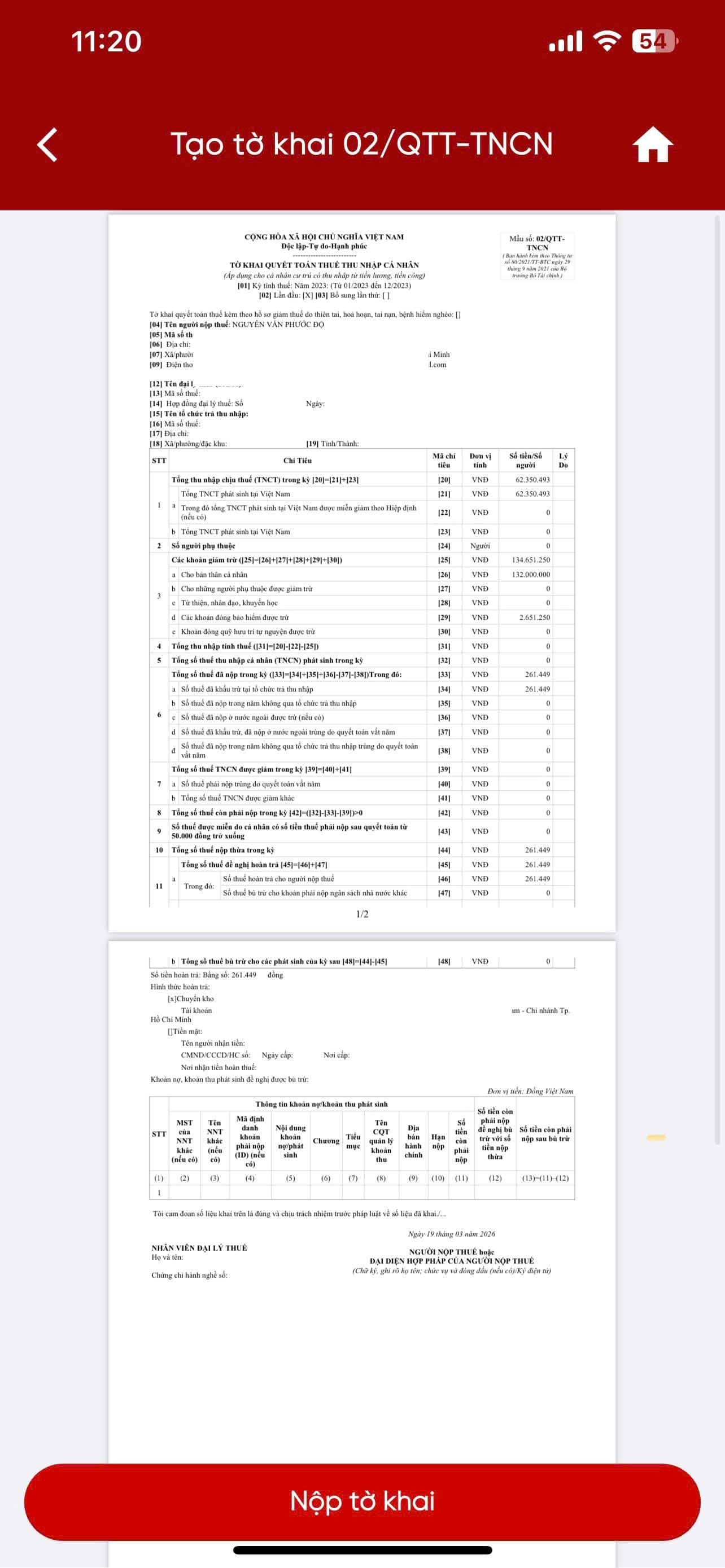
Step 9: Verify the submission of the declaration form using the OTP code.
| TT | Operation |
| 9.1 | Press"Continue"after the entire appendix has been uploaded. |
| 9.2 | Sending systemOTP coderegarding the registered phone number |
| 9.3 | Enter the OTP code correctly → Complete the declaration submission verification. |
Step 10: Complete and submit the tax return.
| TT | Operation |
| 10.1 | Press"Confirm"Notification System"Declaration submitted successfully" |
| 10.2 | Take a screenshot or save the confirmation message as proof of completion. |
The entire 10-step process can be completed within 15–30 minutes if all the necessary information and documents are prepared.