
Reset Windows 11/10: How to restore your computer's performance to like-new condition.
Computer lag and system errors can be completely resolved by resetting. This guide presents 3 safe methods for restoring factory settings, helping Windows run smoothly and stably.
After prolonged use, Windows computers often encounter problems such as lag, freezing, or unexplained system errors. When conventional software troubleshooting doesn't work, performing a factory reset is the most effective solution to clean the system, remove junk files, and restore optimal performance as when the computer was new.
The core benefit of performing a PC reset.
Resetting the operating system is not simply about deleting data; it's a comprehensive maintenance process for both hardware and software. According to technical experts, resetting a computer offers three major benefits:
- Performance optimization: Loại bỏ triệt để các tệp rác, ứng dụng lỗi thời và các tiến trình chạy ngầm làm tiêu tốn tài nguyên CPU và RAM.
- Tăng cường bảo mật: Quét sạch virus, phần mềm gián điệp (malware) hoặc các mã độc ẩn náu sâu trong các tệp hệ thống mà phần mềm diệt virus thông thường có thể bỏ sót.
- Sửa lỗi hệ thống: Khắc phục tình trạng màn hình xanh (BSOD), lỗi Registry và xung đột trình điều khiển (driver), giúp máy vận hành ổn định hơn.
Những lưu ý quan trọng để tránh mất dữ liệu
Trước khi tiến hành, người dùng cần chuẩn bị kỹ lưỡng vì quá trình này có thể làm thay đổi hoàn toàn môi trường làm việc hiện tại. Cụ thể:
- Sao lưu dữ liệu: Mọi tệp tin trong ổ đĩa hệ thống (thường là ổ C), hình ảnh và tài liệu sẽ bị xóa nếu bạn chọn chế độ xóa toàn bộ. Hãy sử dụng ổ cứng ngoài hoặc dịch vụ đám mây như OneDrive.
- Thời gian thực hiện:The process can take from 2 to 4 hours depending on the speed of your hard drive (HDD or SSD). Ensure a stable power supply, especially for laptops.
- Software copyright:Record the activation codes for paid software like Microsoft Office or Adobe so you can reactivate them after a system refresh.
3 most popular methods to reset Windows 11/10
Depending on the current state of the computer, users can choose one of the following three methods:
1. Use the Windows Settings menu (Recommended)
This is the safest and easiest method for the average user. Windows will automatically handle system files without the need for external tools.
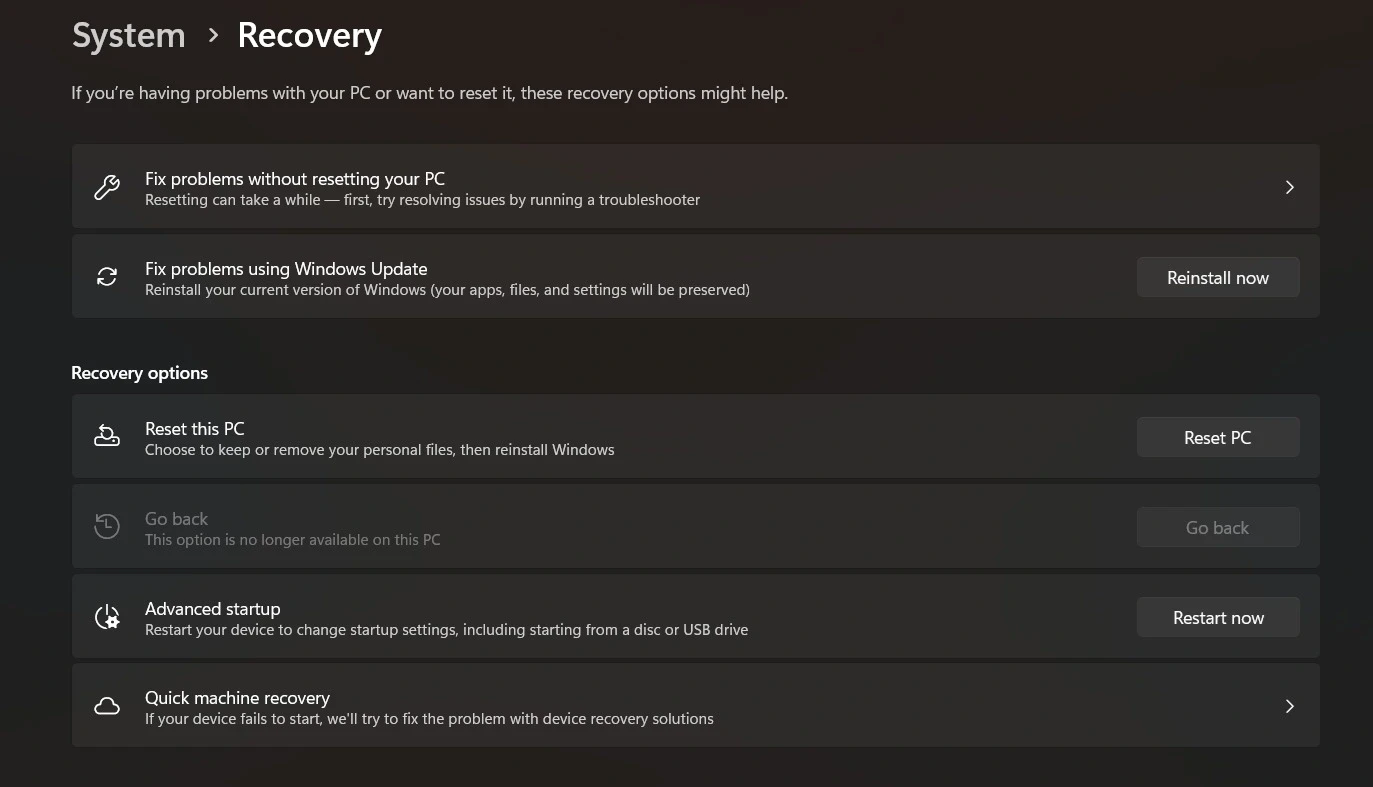
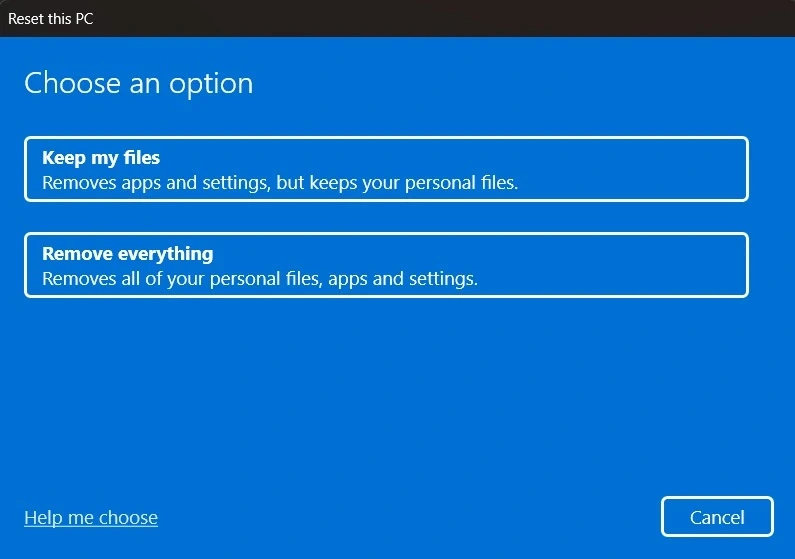
Steps to follow: Press the key combinationWindows + Ito openadjustingnewsSystemnewsRecoveryIn this sectionReset this PC, selectReset PCand follow the instructions.
2. Use Advanced Startup (When Windows fails to start)
If your computer malfunctions and cannot access the main screen, use the elevated boot menu. To do this, press and hold the key.Shiftand chooseRestartFrom the login screen, the system will take you to the green environment (WinRE). Here, selectTroubleshootnewsReset this PC.

3. Use Installation Media (Complete fresh installation)
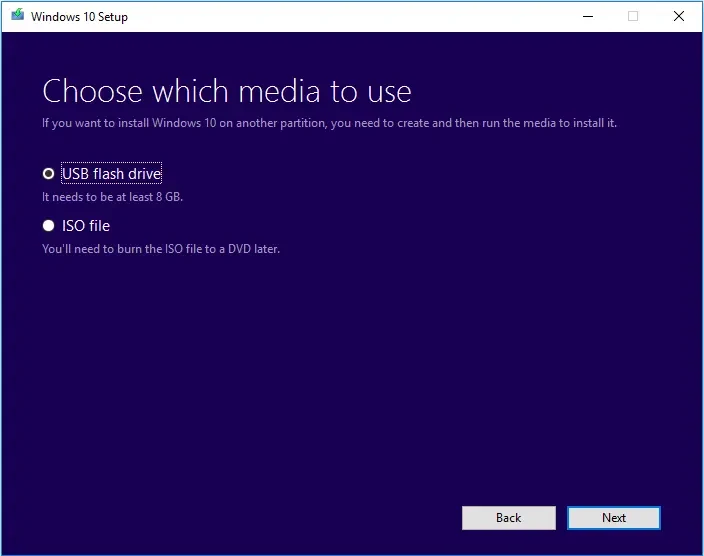
This is the most thorough method, requiring a USB drive created using a specific tool.Media Creation ToolThis is a Microsoft method that reforms the entire hard drive, removing even old, faulty partitions, resulting in a completely clean Windows installation.
Troubleshoot common issues and complete setup.
After the reset process is complete, the computer will be in its factory default state. To ensure optimal performance, please follow these steps:
| Steps to take | Purpose |
|---|---|
| Run Windows Update | Install the latest security patches and drivers for your hardware. |
| Check Drivers | Ensure your graphics card, sound card, and WiFi are working properly. |
| Install essential software | Prioritize web browsers, Vietnamese input methods, and security software. |
| Create System Restore Point | Save the stable state to enable quick recovery if problems arise later. |
During the reset process, if the device freezes at a certain percentage for several hours, the cause may be a hard drive failure or a power supply conflict. In this case, users should patiently wait at least 4 hours before deciding to intervene with the hardware or reinstall via USB.
Regularly resetting your computer or resetting it when serious problems occur is the best way to maintain component lifespan and ensure a smooth working experience on the Windows operating system.


