
Speed up Windows 11 startup: 8 simple and effective solutions
Discover 8 methods, from software tweaks to hardware upgrades, to completely resolve slow startup issues on Windows 11 and 10 computers.
Slow computer startup times can waste a significant amount of time, especially when multiple restarts are required. This can even lead to the bad habit of not shutting down the computer for days, causing performance issues. Fortunately, this is a problem that can be solved through simple adjustments.
This article focuses on solutions for Windows 11, however most methods can also be applied to Windows 10.
Fast Startup: The 'fast' feature isn't always effective.
Fast Startup is a feature enabled by default on Windows, designed to reduce boot times by preloading some system information before the computer shuts down. However, this feature is the cause of slow startup issues for many users. Therefore, this is the first setting that needs to be checked.
Note that Fast Startup only works when you select "Shut down". The "Restart" operation will perform a full restart and will not be affected by this feature.
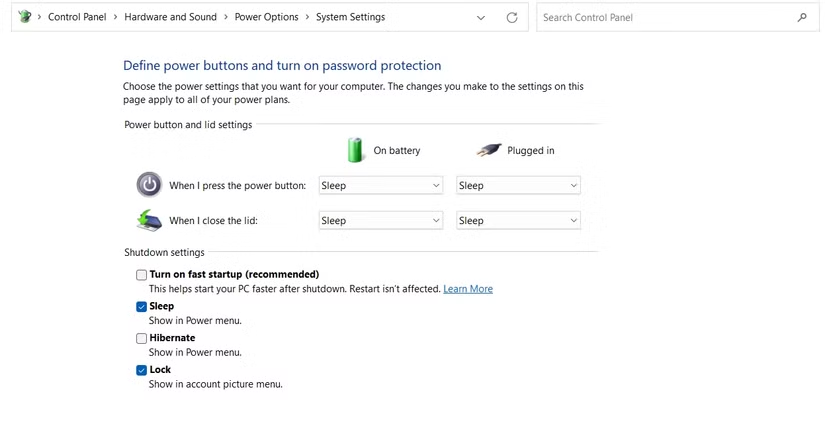
To adjust Fast Startup settings:
- OpenControl Panel, change the "View by" mode to "Small icons" and selectPower Options.
- In the left sidebar, clickChoose what the power buttons do.
- Click on the textChange settings that are currently unavailableto grant administrative privileges.
- Uncheck the boxTurn on fast startup (recommended)To turn this feature off, click here.Save Changes.
If this feature is turned off, you can try turning it back on to see if it improves speed. If you don't see this option, you need to enable hibernate mode by opening Command Prompt (Admin) and running the command:powercfg /hibernate on.
Optimize virtual memory through the Paging File.
Virtual memory is a portion of hard drive space that Windows uses as temporary RAM, known as a paging file. When physical RAM is nearly depleted, the system moves infrequently used processes into virtual memory. Sometimes, Windows automatically changes this setting, causing startup problems.
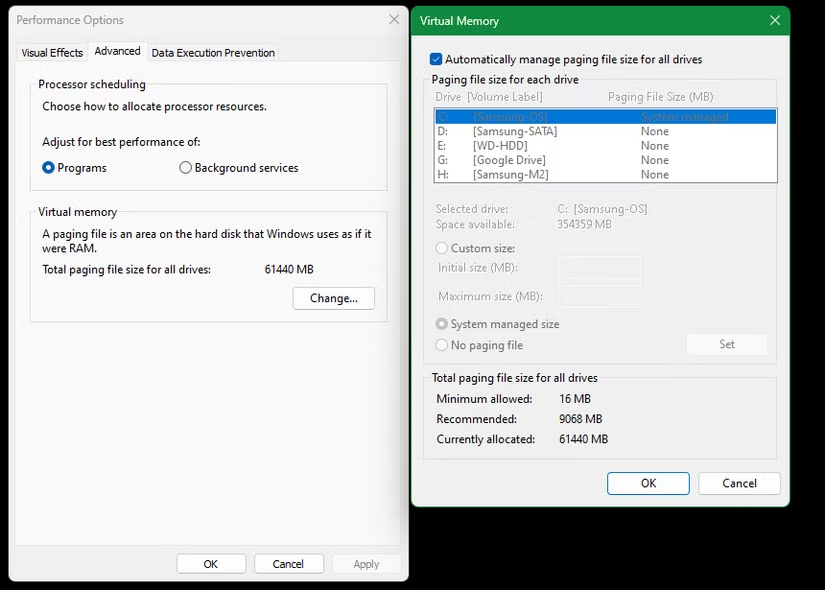
To check and adjust:
- Type "Performance" into the Start menu and select it.Adjust the appearance and performance of Windows.
- Switch tabAdvancedand click the buttonEditin the Virtual memory section.
- DeselectAutomatically manage paging file size for all drives.
- Select drive C:, then selectCustom SizeSet the "Initial Size" and "Maximum Size" values to the "Recommended" levels suggested at the bottom.
Conversely, if automatic mode is off, you can try turning it back on to let the system manage itself and see if that resolves the issue.
Disable Windows Subsystem for Linux (WSL) when not needed.
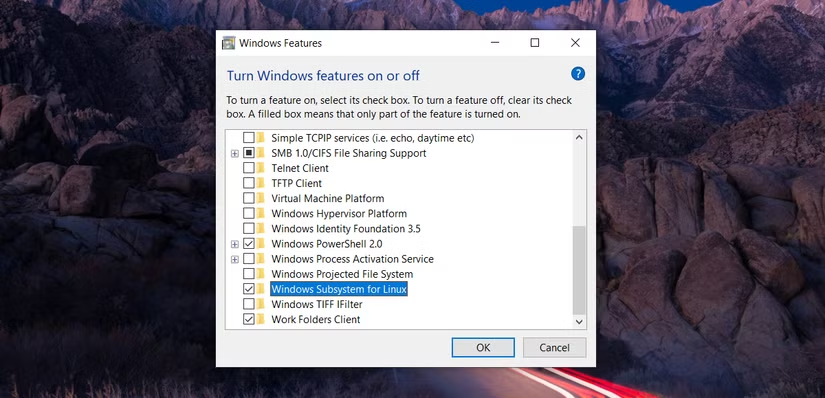
Windows Subsystem for Linux (WSL) is a powerful feature for developers, allowing them to run Linux environments directly on Windows. However, if you don't use it, it can be an unnecessary process that slows down your system. To disable WSL, type "Windows features" into the Start menu, open the window.Turn Windows features on or off, scroll down and deselectWindows Subsystem for LinuxThen restart the computer.
Update your graphics drivers.
Outdated or incompatible drivers, especially graphics card drivers, can cause numerous performance issues, including slow startup times. Updating them is a crucial troubleshooting step.
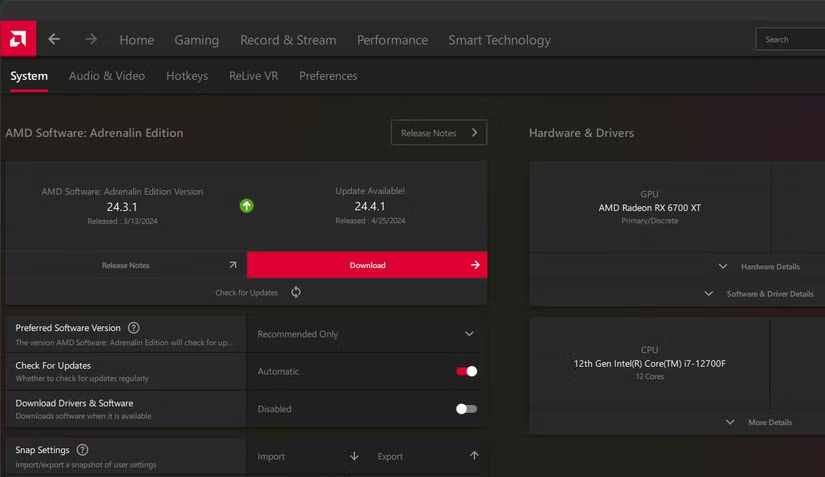
OpenDevice Manager, find the itemDisplay adaptersTo determine the type of graphics card you are using (Nvidia, AMD, or Intel), use the manufacturer's official software (Nvidia App, AMD Software: Adrenalin Edition, or Intel Driver & Support Assistant) to check and install the latest driver version.
Clean up programs that start with the system.
If your computer boots up quickly to the login screen but then slows down significantly, it could be because too many applications are set up to run simultaneously. This consumes system resources and prolongs the waiting time.
To manage these applications, press the key combination.Ctrl + Shift + Escto openTask Manager, then go to the tabPocket appsHere, you can disable all non-essential applications.
Scan SFC to repair system files.
The System File Checker (SFC) command is a built-in Windows tool used to scan and repair corrupted system files. A corrupted system file related to the boot process can be the root cause of the problem. Running an SFC scan can help identify and fix these errors, restoring system stability.
Upgrading to an SSD: A radical hardware solution.
Running Windows on a traditional mechanical hard drive (HDD) will always result in sluggish performance. HDDs are suitable for storing large amounts of data at a low cost, but they are not fast enough to be the primary drive for modern operating systems. If your computer is still using an HDD, upgrading to a solid-state drive (SSD) will provide a significant performance improvement, especially in boot speed.
The final solution: Reset Windows
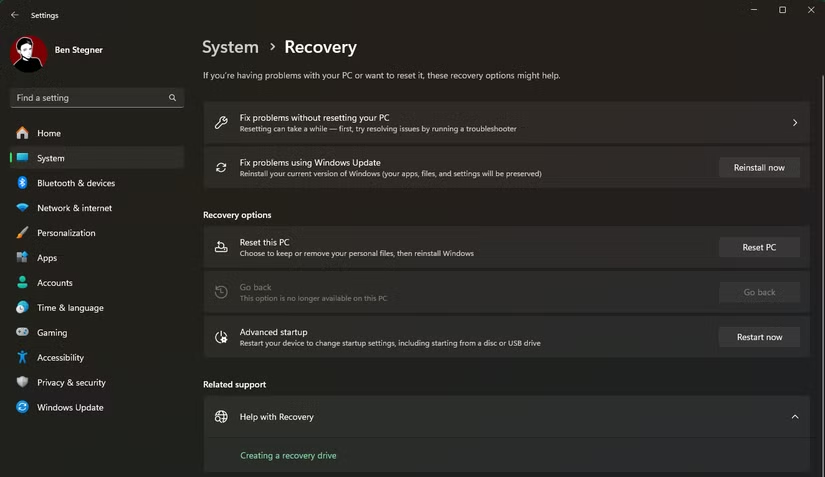
If all the above methods fail, the final solution is to reinstall a fresh copy of Windows. You can go toSettings > System > Recoveryand chooseReset this PCThis option allows you to reinstall Windows without losing personal files, but backing up important data beforehand is still recommended.
In short, slow startup is an annoying problem, but it's entirely fixable. By implementing solutions ranging from software tweaks to considering hardware upgrades, you can restore speed and performance to your computer.


