
Setting up a VPN on Windows 11: A detailed, step-by-step guide.
Windows 11 includes a built-in Virtual Private Network (VPN) management tool, allowing users to create and manage secure connections without installing third-party software.
Windows 11 provides a built-in Virtual Private Network (VPN) manager directly within the Settings app, making it easy for users to set up and configure secure connections. A VPN creates an encrypted "tunnel" over the internet, connecting your device to a remote network, allowing secure access to internal resources as if you were physically present.
This guide will provide detailed steps to create, manage, and customize a live VPN connection on Windows 11.
How to create a new VPN connection on Windows 11
To set up a new VPN profile, you'll need information from your service provider or network administrator, including the server address, VPN type, and login credentials. Follow these steps:
- Open the applicationadjustingon Windows 11.
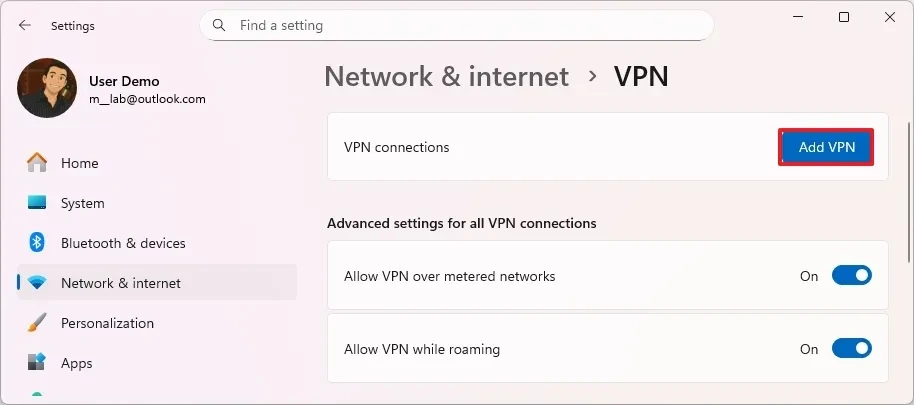
- Navigate to the itemNetwork & Internetand select the tabVPN.
- Press the buttonAdd VPN.
- In the sectionVPN provider, selectWindows (built-in).
- In the sectionConnection name, give the VPN connection a recognizable name.
- In schoolServer name or addressEnter the domain name or public IP address of the VPN server.
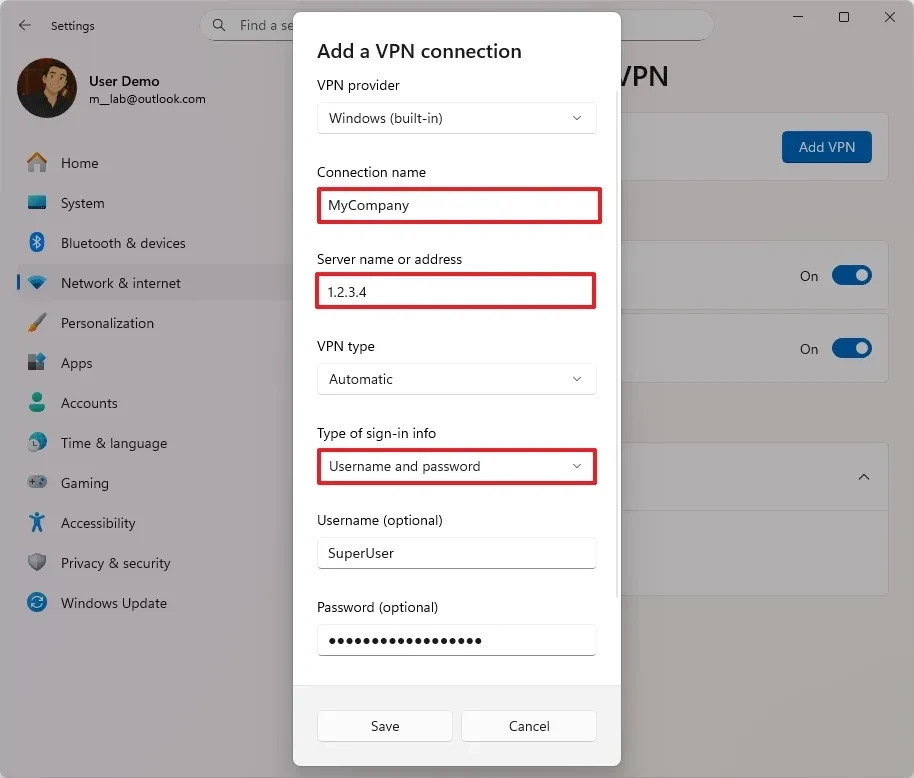
- In the sectionVPN type, selectTransThe system will automatically determine the protocol. If specific requirements are needed, you can select other protocols such as IKEv2, SSTP, or L2TP/IPsec.
- In the sectionType of sign-in infoChoose an authentication method, the most common being:Username and password.
- Enter the provided username and password.
- Press the buttonSaveTo complete.
Once completed, a new VPN profile will be created and ready to use on your computer.
Manage VPN connections
Once set up, you can easily connect, disconnect, or delete your VPN profile when you no longer need it.
Connect and disconnect.
To start a VPN session, follow these steps:
- OpenSettings > Network & internet > VPN.
- Select the VPN profile you just created.
- Press the buttonContactto establish a connection.
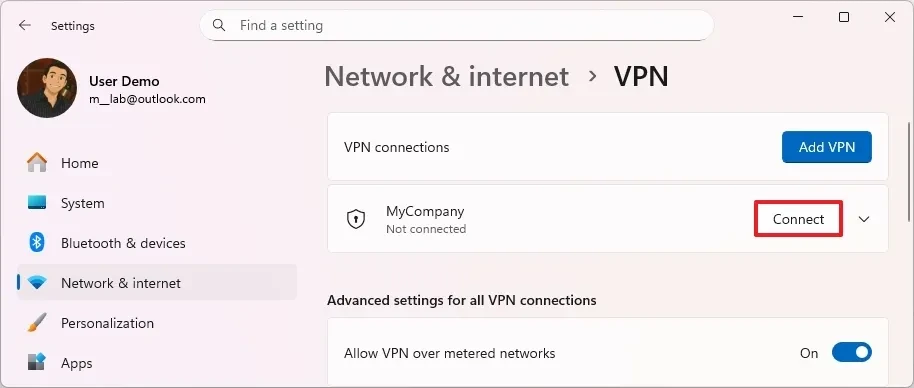
Alternatively, you can access it quickly by pressing a key combination.Windows + ATo open Quick Settings, select the VPN option and tap Connect.
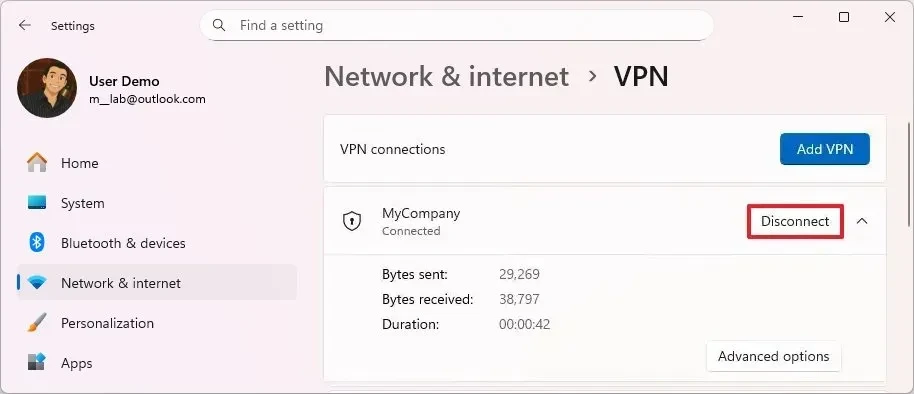
Once successfully connected, the status will display "Connected". To disconnect, simply repeat the above steps and press the button.Disconnect.
Delete VPN profile
If you are no longer using a VPN connection, you can remove it from your system:
- AccessSettings > Network & internet > VPN.
- Select the VPN connection you want to delete.
- Press the buttonmassive.
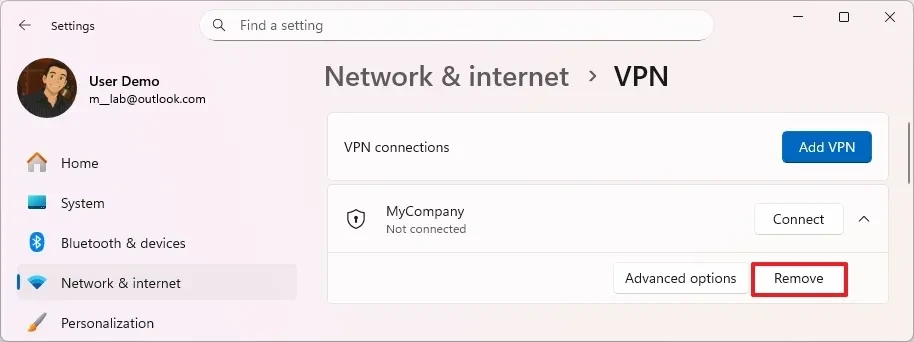
- Confirm your decision by pressingConfirm.
Advanced customization and configuration
Windows 11 allows users to edit VPN connection properties if there are changes to server information or configuration requirements.
- In the VPN settings page, select the connection you want to edit.
- Click hereAdvanced options.
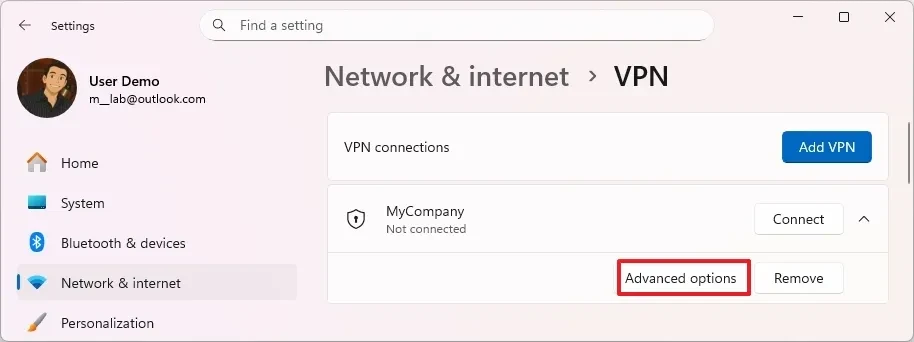
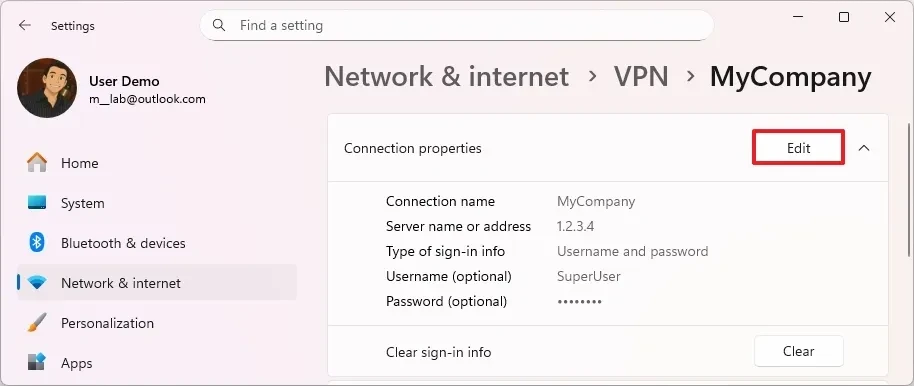
- Here you can view the connection properties. Press the button.EditTo change information such as server address, VPN type, or login credentials.
Additionally, the main VPN settings page also has extra options such asAllow VPN connections over metered networks(Allows VPN over a measured network) andAllow VPN to connect while roaming(Enables VPN while roaming), helping to maintain a stable connection while traveling.
Frequently Asked Questions
What VPN protocols does Windows 11 support?
This operating system supports common protocols including IKEv2, SSTP, L2TP/IPsec (with pre-shared certificates or keys), and PPTP. The "Automatic" option is recommended if you are unsure of your network requirements.
What information do I need to establish a VPN connection?
You will need a connection name (which you choose yourself), server address (domain name or IP), VPN type, login method, and authentication information (username and password). This information is usually provided by the company's network administrator or VPN service provider.
How do I know if my VPN is working?
Once the connection is successful, the status in the VPN settings will show "Connected". Additionally, the network icon in the System Tray will display a small badge indicating that the VPN connection is active.
Why can't I connect to the VPN?
Common causes include incorrect server addresses, incorrect login credentials, incompatible protocols, or a firewall blocking the connection. Double-checking the information entered in the connection properties can often resolve the issue.


