
How to bring the familiar Windows 10 interface to Windows 11
If you're not yet familiar with the new interface, you can customize Windows 11 to bring back the Taskbar, Start menu, and many other familiar elements from Windows 10.
Windows 11 offers a modern interface with rounded corners and a centrally located Start menu, but not all users are comfortable with this change. Many still prefer the familiar and efficient interface of Windows 10. Fortunately, you can customize Windows 11 to closely resemble its predecessor through a few system tweaks.
Customize the taskbar and Start menu.
These are two of the biggest changes in Windows 11. Bringing them back to the classic interface will help you get used to the new operating system more easily.
Move the taskbar to the left corner of the screen.
The most noticeable change in Windows 11 is the centered Taskbar. To move the icons back to the left corner like in Windows 10, simply follow these steps:
- Right-click on an empty space on the Taskbar and selectTaskbar settings(Setting up the taskbar).
- In the settings window, find and expand the itemTaskbar behaviors(Task bar behavior).
- In the optionsTaskbar coordination(Adjust the taskbar), selectLeft(Left) from the dropdown menu.
Additionally, in the Taskbar settings, you can also disable unnecessary icons like widgets for a cleaner interface.

Restore the Start menu to the Windows 10 style.
Completely restoring the Windows 10 Start menu is not possible using the built-in customizations. You will need the assistance of third-party tools. Two popular and effective options are Start11 (paid) and OpenShell (free).
- Start11:This is a powerful tool priced at $9.99 that allows for deep customization of the Start menu and taskbar. After installation, you can easily select your Windows 10 style and align it to the left.
- OpenShell:It's a free, open-source project that offers the ability to customize the Start menu in various classic styles, including Windows 7 and Windows 10.
Optimize File Explorer and the right-click menu.
Changes to Windows 11's File Explorer and right-click menu aim to simplify the interface, but may reduce performance for professional users.
Show the full right-click menu with all options again.
The simplified right-click menu on Windows 11 often requires users to click "Show more options" to see the full list of commands. To restore the classic menu, you can edit the Registry.
Important note:Editing the Registry can cause system errors if done incorrectly. Always back up the Registry before making any changes.
- Press the key combinationWin + Rtyperegeditand press Enter to open Registry Editor.
- Navigate to this link:
HKEY_CURRENT_USER\Software\Classes\CLSID - Right-click on the folder.CLSID, selectNew > Keyand name the new key
{86CA1AA0-34AA-4E8B-A509-50C905BAE2A2}. - Inside the newly created key, create another new key and name it...
InprocServer32. - Double-click on the item(Default)In the InprocServer32 key, ensure the fieldValue dataLeave blank and pressOK.
- Close Registry Editor and restart your computer.
Bring the classic Ribbon back to File Explorer.
The new toolbar in Windows 11 File Explorer has removed the detail ribbon from Windows 10. You can restore it by editing the Registry following these steps:
- Open Registry Editor.
- Navigate to this link:
HKEY_LOCAL_MACHINE\SOFTWARE\Microsoft\Windows\CurrentVersion\Shell Extensions - Right-clickShell Extensions, selectNew > Keyand named itBlocked(if not already present).
- In the Blocked section, right-click on the right pane and selectNew > String Valueand named it
{e2bf9676-5f8f-435c-97eb-11607a5bedf7}. - Close Registry Editor and restart your computer.
Other interface and functionality customizations
To achieve a more immersive Windows 10 experience, you can make a few minor changes as follows.
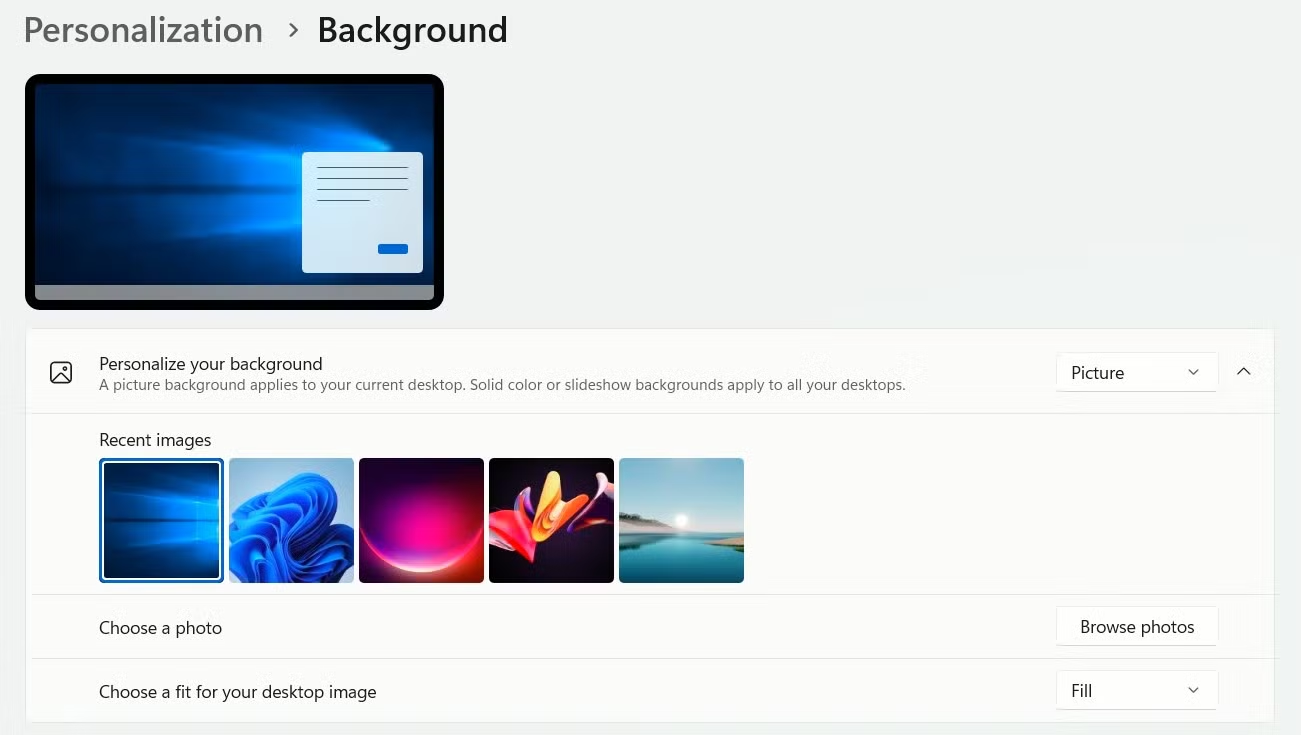
Use the default Windows 10 wallpaper.
One of the simplest ways to evoke the feel of Windows 10 is to reuse the default wallpaper. You can find and download a high-resolution version of this wallpaper from online sources, then set it via...Settings > Personalization > Background.
Remove the rounded window corners.
If you like the sharp window corners of Windows 10, try the following Registry edit:
- Open Registry Editor and navigate to:
HKEY_CURRENT_USER\Software\Microsoft\Windows\DWM - Right-click on the right pane, selectNew > DWORD (32-bit) Valueand named it
UseWindowFrameStagingBuffer. - Double-click on the newly created value, setValue datawall0and pressOK.
- Restart your computer to apply the changes.
Turn off Microsoft Copilot virtual assistant.
Copilot is an AI assistant deeply integrated into Windows 11. If you don't use it and want an experience closer to stock Windows 10, you can disable it:
- Open Registry Editor and navigate to:
HKEY_CURRENT_USER\Software\Policies\Microsoft\Windows - Right-click on the folder.Windows, selectNew > Keyand named itWindowsCopilot.
- In the WindowsCopilot key, create aDWORD (32-bit) Valuenew and named
TurnOffWindowsCopilot. - Double-click this value, setValue datawall1and pressOK.
- Restart your computer.
By applying these tweaks, you can combine the stability and new features of Windows 11 with the familiar, efficient interface of Windows 10, creating a more personalized and comfortable work environment.