
Tips for quickly freeing up RAM on iPhone
Besides restarting your device, you can use another faster method to free up RAM on your iPhone, iPad, and iPod Touch.
Is your iPhone running slow? Are apps acting erratically? If you're experiencing these issues, the problem is most likely due to your device's RAM. In this case, freeing up RAM on your iPhone is necessary and highly effective.
Normally, to free up RAM, users are advised to restart their computer. However, in reality, there is another way to do this, and it's much quicker than restarting. The article below will guide you on how to free up RAM.
First, you need to turn off your iPhone by pressing and holding the power button until the "Slide to power off" message appears on the screen.
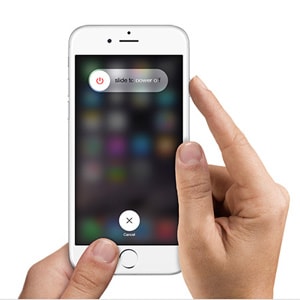 |
Next, remain in the same state; do not press the "Cancel" button at the bottom of the screen or swipe right to turn off the device. Instead, press and hold the iPhone's Home button. After a few seconds, you will find yourself redirected to the homescreen with the RAM freed up. This trick can also be applied to iPads and iPod Touches.
Now, if you double-tap the Home button, you'll still see the list of recently opened apps appear; however, unlike before freeing up RAM, they will reload when you select them. Generally, this is a trick you shouldn't overuse, as iOS manages RAM quite well. Nevertheless, if needed, this method is certainly more convenient than restarting your iPhone as before.
According to ICTNews
| RELATED NEWS |
|---|


