
Mastering Windows environment variables: Optimizing command line efficiency
Discover how to edit environment variables and Path variables on Windows 10/11 to shorten commands, run applications faster, and personalize your system.
Editing environment variables is an advanced technique on Windows that allows users to optimize workflows, especially when interacting with Command Prompt or PowerShell. By customizing these variables, you can save time typing commands, make scripts cleaner, and flexibly manage how the operating system stores files.
What are environmental variables and why are they important?
Environment variables are dynamic values that contain information about the system environment for running programs. They can locate important directories (such as the Temp folder), provide information about system configuration (such as Windows version, number of processor cores), and can be accessed by any application or script on the computer.
These variables are divided into two categories: user variables (applicable only to the current account) and system variables (applicable to all users).
The power of the Path variable
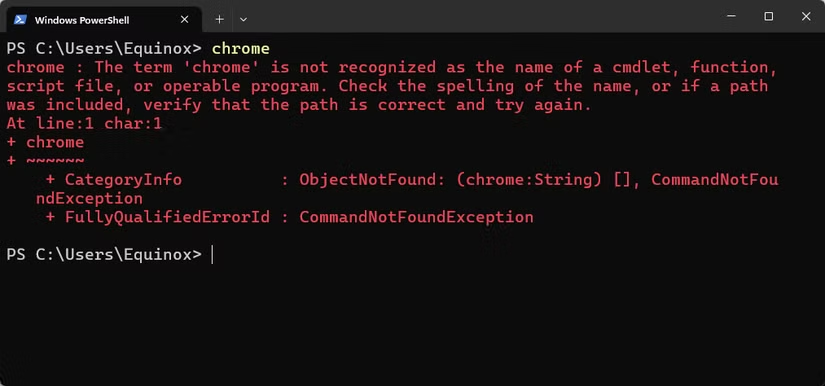
Among the environmental variables,SwaIt is one of the most important and useful variables. It defines a list of directories that the system will automatically search when you execute a command in the Terminal. For example, you can typenotepadAnd the Notepad application will launch immediately because the path to its executable file is in the Path variable. Conversely, if you typechromeYou might encounter an error because the default Chrome installation directory is not added to Path.
Customizing the Path variable allows you to run command-line applications from anywhere without specifying the full path to the executable file.
Important note:Incorrectly changing environment variables can cause system problems. Make sure you fully understand the impact of the changes and thoroughly test them before confirming.
Detailed instructions on how to edit environment variables.
The process for editing environment variables on Windows 10 and Windows 11 is essentially the same, with only a few minor interface differences.
Step 1:Open the System Properties window. Click the Start button, type "environment variables" into the search bar, and select "Edit the system environment variables".
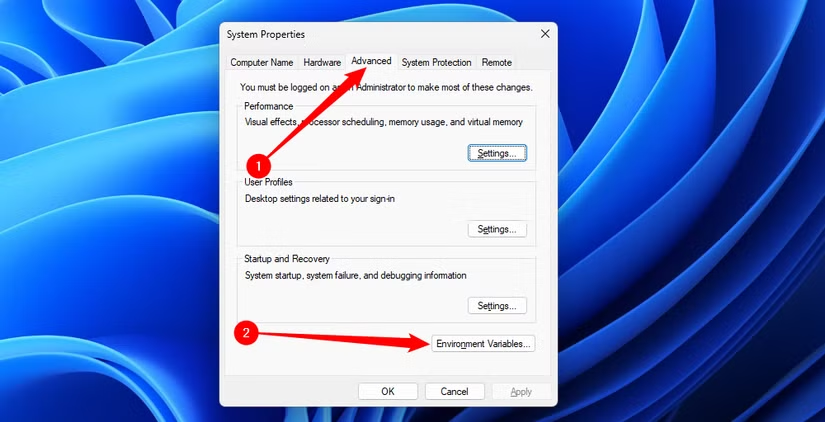
Step 2:In the System Properties window that just opened, click the "Environment Variables..." button.
Add or edit a variable
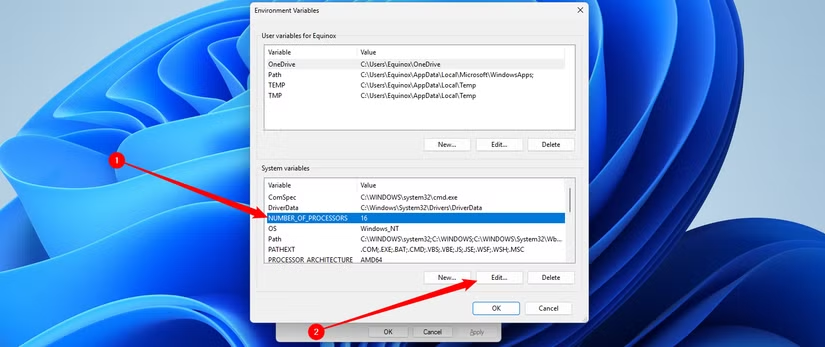
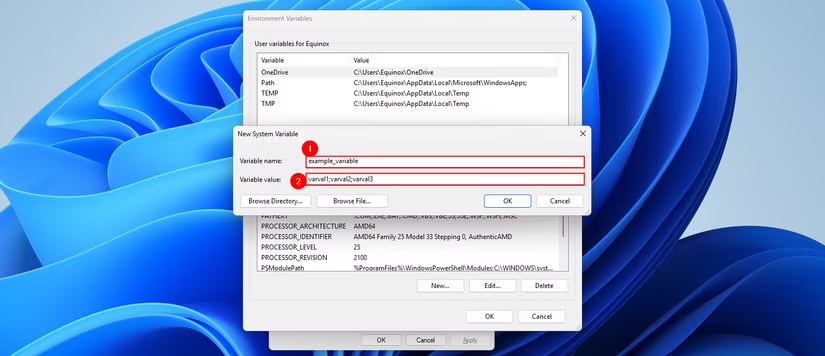
To create a new variable, click the "New..." button under user variables or system variables. You will need to provide a Variable name and a Variable value.
To edit an existing variable, select it from the list and click "Edit...". Change the value as desired and click "OK". Some variables may contain multiple values, separated by semicolons (;).
Customize Path variables
Editing the Path variable has a more user-friendly interface. When you select Path and click "Edit...", a window listing the paths will appear.
- Add a new path:Click on "New," then paste or type the path to the folder you want to add.
- Edit:Select a path and click "Edit".
- Erase:Select a path and click "Delete".
Practical example: Integrating FFmpeg into the system.
FFmpeg is a powerful command-line tool for converting video, audio, and image formats. For convenient use of FFmpeg, we can add it to the Path variable.
- Download and extract FFmpeg:Download the latest version from the FFmpeg homepage and extract it to a permanent location on your computer, for example:
C:\ffmpeg. - Identify the path:The FFmpeg executable file is located in a subdirectory.
binThe full path would beC:\ffmpeg\bin. - Add to Spread:Open the Path variable editor window as instructed above. Click "New" and paste the path.
C:\ffmpeg\binenter. - Confirm:Click "OK" on all windows to save the changes.
Once complete, you can open a new Command Prompt window and type the command.ffmpegYou can test from any directory. This eliminates the need to manually point to the executable file every time you need to use it.
Mastering environment variables, especially Path variables, is a crucial step in transforming Windows into a highly efficient and personalized work tool, boosting productivity for developers, system administrators, and advanced users.


